- Wordpause
- Translate hardcoded subtitles
Coming soon for Windows
Translate hardcoded subtitles without extracting them
Wordpause reads burned-in subtitles off the screen while the video plays, and shows what any word means when you point at it.
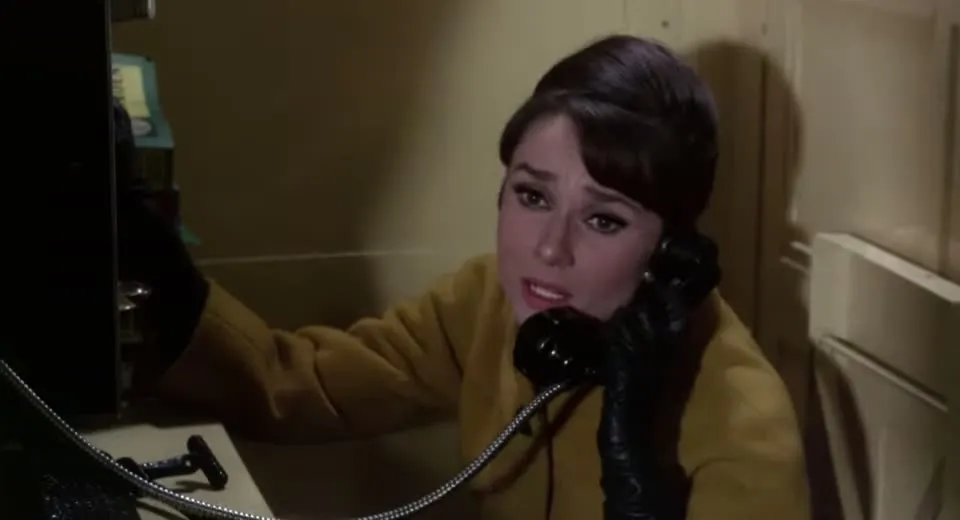 Paused
Pero alguien me quiere matar.
The short answer
How to translate hardcoded subtitles
Hardcoded (burned-in) subtitles are part of the picture, so there is no text to copy. To get a translated file you first have to extract them with text recognition. To understand them while you watch, use Wordpause: it recognises the text on screen and explains the word you point at.
Extracting subtitles from a video takes time and the result needs correcting by hand. It is worth doing when you need a subtitle file, for example to publish a translation.
When you only want to understand what you are watching, you do not need a file. Wordpause reads the line that is on screen at the moment you point at it.
How it works
One movement of the mouse
-
Hover the subtitle
The video pauses the moment your cursor touches the line.
-
Hover the word
See what it means, with real example sentences. Drag across a few words to translate a phrase.
-
Move away
Playback carries on from the same frame. Save the word first if you want to review it later.
Details
Reading text that is part of the picture
Read on your PC
The text is recognised on your own computer. Only the word, phrase or line you look up is sent for translation.
Any desktop player
VLC, mpv, PotPlayer, Stremio, MPC-HC, MPC-BE and Windows Media Player work out of the box. Add another app from the tray menu.
Ten subtitle languages
English, Spanish, French, German, Italian, Portuguese, Polish, Ukrainian, Japanese and Korean.
A word, a phrase or the line
Hover one word, drag across a few, or translate the whole line when a single word is not enough.
Good to know
Where it has limits
Recognition depends on the picture. Small, blurred or heavily stylised subtitles, and text over a busy background, are read less reliably than clean white text.
Wordpause does not produce a subtitle file and does not remove the burned-in text from the video. Protected streaming apps show a black picture to anything that reads the screen; on those services, watch in Chrome with the Wordpause Chrome extension.
Questions
Before you ask
What are hardcoded subtitles?
Subtitles that were drawn into the video picture when it was made. They cannot be switched off, and there is no subtitle file or text track behind them. They are also called burned-in or open subtitles.
Do I have to extract the subtitles first?
No. Wordpause reads the subtitle that is on screen when you point at it. No file is created or needed.
Can it give me an .srt file?
No. Wordpause is for understanding subtitles while you watch. To make a file you need a subtitle extraction tool.
Does it work in a browser too?
The Windows app can read a browser window if you choose it from the tray menu. For subtitles that are text on the page, the Chrome extension is the better fit.
Which languages does it support?
Subtitles can be read in English, Spanish, French, German, Italian, Portuguese, Polish, Ukrainian, Japanese and Korean, and translated between those languages.
Is it available yet?
Not yet. Wordpause is in development. Write to wordpause@releasium.com and we will tell you when it is ready.
How much will it cost?
There is a free plan with 30 lookups a month. Paid plans start at $3.99 a month, or $2.67 a month billed yearly. See plans